
"We outsource every social media banner" or "nobody on the team can use design software, so visuals always get postponed" — these are some of the most common complaints in marketing and communications teams.
This guide explains how to generate banners and social media images automatically from plain text instructions, covering tool selection, platform-specific sizes, and prompt-writing techniques. The content is based on the training materials we use in our corporate workshops and online course.
What you will learn in this article
- What AI banner and image generation is, and what it can do for your business
- Two complementary skills — banner-creator and nanobanana — and when to use each
- The difference between Nano Banana (Fast Mode) and Nano Banana Pro (Thinking Mode)
- Recommended dimensions for X, Instagram, and YouTube
- Five prompt-writing tips for high-quality images
- What runs behind the command, and how to fix low-quality results
What is AI banner and image generation?
AI banner and image generation is a technology that automatically creates banners and social media images from text instructions alone. No design software skills are required — you just describe what you want.
In practical business terms, it lets you:
- Create social media posts, ad banners, blog header images, and event announcements in seconds
- Try many variations quickly and pick the best design
- Eliminate outsourcing costs and waiting time — turn an idea into an asset immediately
One important expectation to set: image generation AI is not a "perfect image on the first try" tool. The core working style is to adjust your instructions step by step and converge on the result you want.
Two complementary skills — banner-creator and nanobanana
Our course materials use two image generation skills with different roles.
| Skill | Role | Best for |
|---|---|---|
| banner-creator | Auto-generates social media banners | Platform-specific images for X, Facebook, Instagram, PRTimes, YouTube, LINE, and web ads |
| nanobanana | General-purpose image generation and editing | Custom images in any size or style; text-to-image and reference-image editing |
banner-creator ships with platform presets — optimal dimensions, aspect ratios, and design guidelines for each social network — so you only specify the platform and the topic.
nanobanana is a versatile tool built on the Gemini Image Generation API. It supports text-to-image generation as well as editing based on reference images (img2img). Shared capabilities include applying the texture, color, and style of a reference photo, instantly resizing to the format you need, and placing text for logos, invitations, posters, and more.
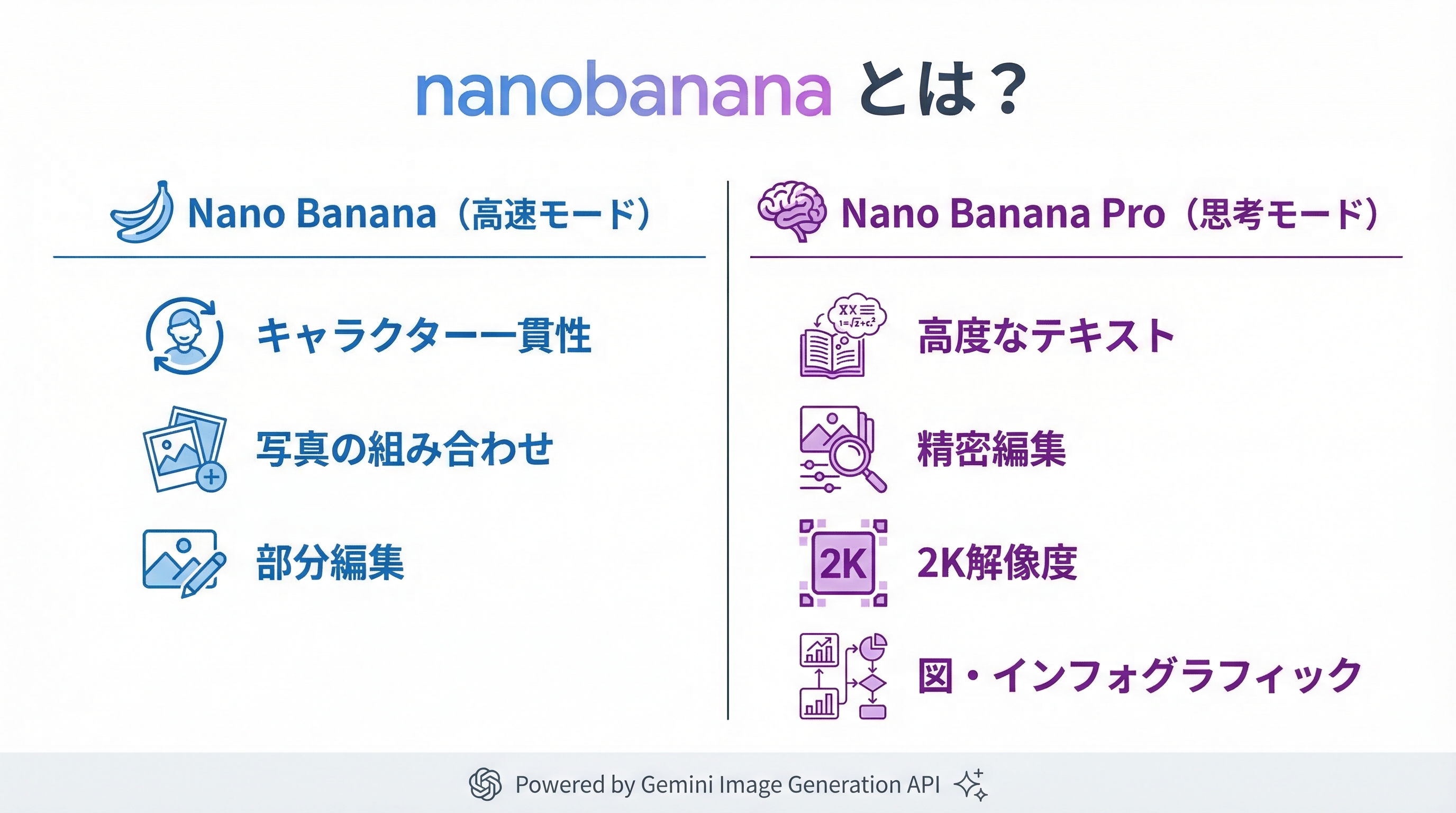
Nano Banana vs. Nano Banana Pro
nanobanana offers two modes: Fast Mode and Thinking Mode (Pro).
| Aspect | Nano Banana (Fast Mode) | Nano Banana Pro (Thinking Mode) |
|---|---|---|
| Use case | Quick creative production | High-precision output and accurate control |
| Strengths | Character consistency, photo compositing, partial edits | Advanced text rendering, precision editing, 2K resolution, diagrams and infographics |
| Controls | Basic editing | Fine control over lighting, camera angle, and aspect ratio |
A simple decision guide:
- Need ideas fast → Nano Banana (Fast Mode)
- Need a high-precision finish → Nano Banana Pro (Thinking Mode)
- Text legibility matters → Nano Banana Pro (advanced text rendering)
- Need diagrams or infographics → Nano Banana Pro
A practical two-step workflow is to explore directions quickly in Fast Mode, then switch to Pro for the final polish.
Recommended sizes by platform
Each platform has its own optimal dimensions. The main sizes covered in the course are:
| Platform | Recommended size | Use |
|---|---|---|
| X (formerly Twitter) | 1200x675 | Post banner |
| 1080x1080 | Square post | |
| Instagram Stories | Vertical format | Stories |
| YouTube | 1280x720 | Thumbnail |
Because banner-creator stores these as presets, you never need to memorize them. To target multiple platforms, run a separate generation for each one.
The workflow — a real generation example
Here is the flow for creating a promotional banner for an X post.
- Decide the theme and style — e.g., "New AI productivity tool launch" with "a modern, eye-catching design"
- Ask your AI agent, naming the skill — "Using the banner-creator skill, create a promotional banner for an X post. Theme: ..., Style: ..."
- Review the output — images are saved to an output folder such as
output/images/ - Describe what to change and regenerate — colors, copy, composition: just say it in words
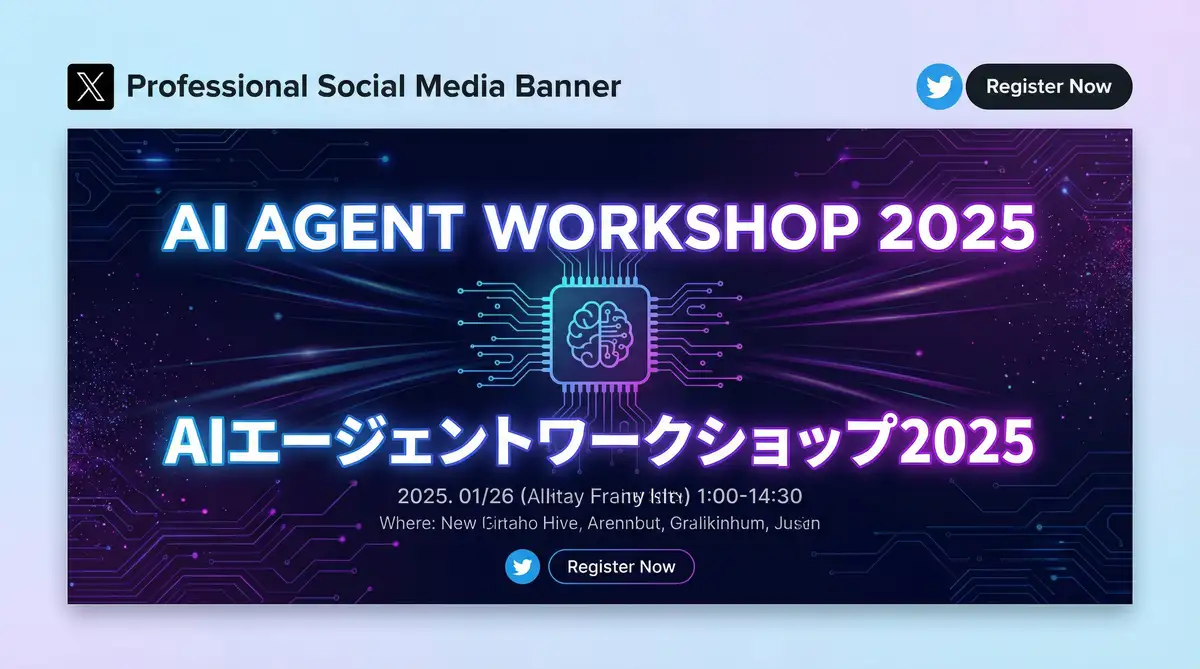
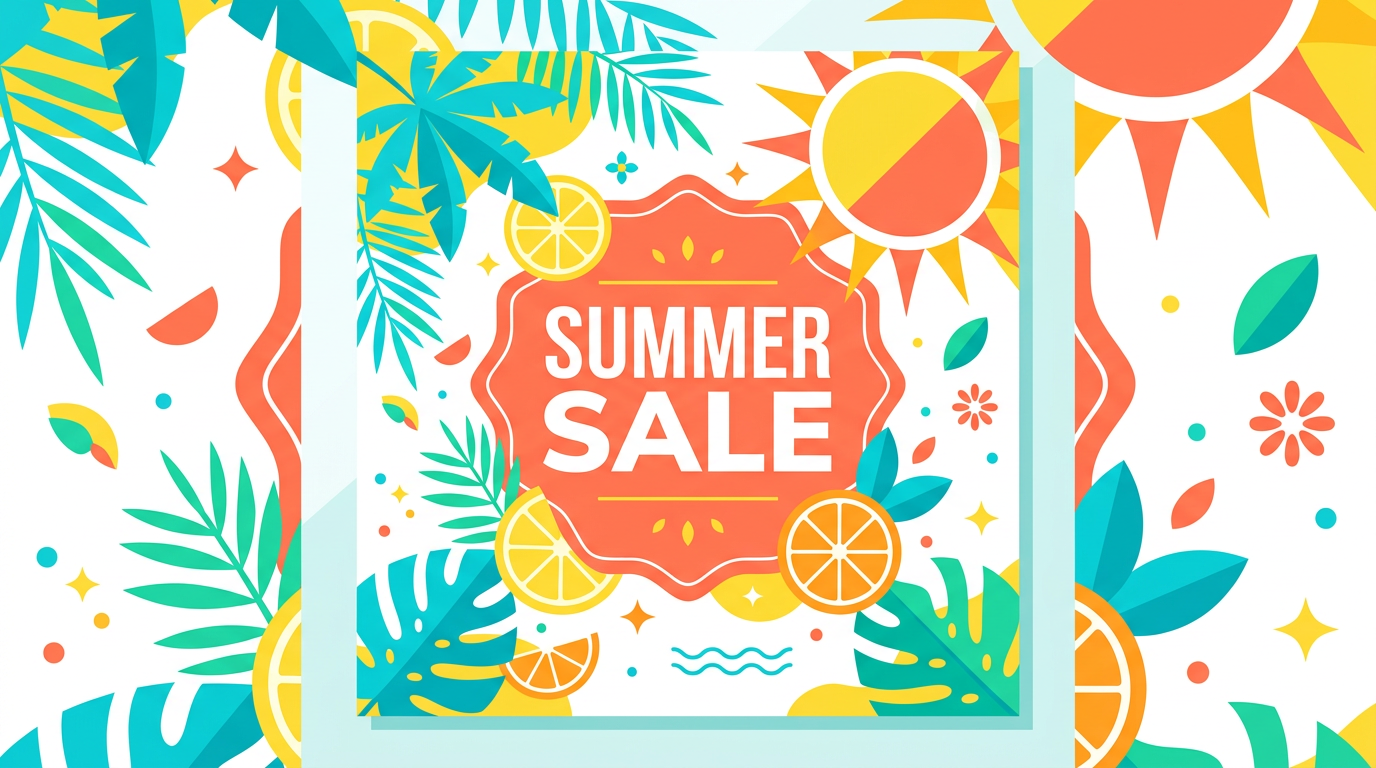
The same flow works for Instagram ("square post, theme: summer sale, 1080x1080, bright summer design") or any other platform — only the format and theme change.
Five prompt-writing tips
There is a repeatable pattern for prompts that produce high-quality images.
| Tip | What it means |
|---|---|
| 1. Start simple | Structure the prompt as "subject / action / scene" |
| 2. Be specific | Detail colors, subject, mood, and background |
| 3. Specify composition, style, quality, and aspect ratio | Explicit constraints sharpen the output |
| 4. Use imagination | Unique scenes and expressions are a strength of these models |
| 5. Refine after generation | Improve through background changes and element swaps |
Additionally, adding modifiers such as "high quality" or "professional" around your prompt improves output quality. Detailed, concrete prompts are the shortest path to better images. For the underlying discipline of writing instructions, see The Complete Guide to AI Agents for Business.
Behind the command — Python is doing the work
When you ask an AI agent (Claude Code, Cursor, etc.) to "make a banner," a Python script runs behind the scenes. For banner-creator, a command takes the platform and topic as arguments:
python tools/banner_creator.py \
    --platform x_post \
    --topic "AI automation tool launch - 3x your productivity"
Even if you are not a programmer, keeping in mind that "behind the chat, machine commands like bash and Python are being executed" makes troubleshooting much easier when something fails.
Advanced use — mass-producing consulting-style slide visuals
Beyond banners, a powerful business application is generating high-density slide images for proposals and internal reports. Because Nano Banana Pro is strong at diagrams and infographics, it can produce strategy-firm-style slides containing charts, tables, and 2x2 matrices.
Three tips:
- Replace the placeholders in the prompt (topic, players to compare, comparison axes) with your own subject
- Instruct the model to produce a slide "with substance" — charts, tables, a 2x2 — not an empty cover
- Generate at least 2–3 variations by changing the topic or comparison axes
Keeping the same layout instructions while swapping the industry, axes, and audience is excellent practice for producing illustrations at scale. For using generated images inside an article workflow, see the AI article writing workflow guide.
Troubleshooting
Common errors and quality fixes:
| Symptom | Cause / fix |
|---|---|
| API key not found | The Gemini API key is not configured — set it up |
| Script not found | Wrong working directory — run from the project root |
| Low image quality | Add modifiers like "high quality" or "4K"; make the prompt more specific; state the style explicitly ("illustration", "photo") |
| Skill does not start | Retry in a fresh session/window |
If errors persist, check your API key's expiration and quota limits.
If you want your whole team to learn AI-powered image generation hands-on, see our corporate AI agent training.
Frequently asked questions
Q. Can I create banners without any design skills? A. Yes. AI banner generation works from text instructions alone, so design-software skills are unnecessary. What you need is the ability to describe the theme, style, and purpose in words; platform presets handle the optimal dimensions automatically. Because you can generate and compare many variations quickly, non-designers can reach practical quality.
Q. When should I use banner-creator versus nanobanana? A. For images targeting a specific platform — X, Instagram, YouTube, and others — banner-creator with its presets is the fastest and most reliable. For custom images in arbitrary sizes and styles, or for editing based on an existing image (background changes, element swaps), use the general-purpose nanobanana. Blog headers and slide illustrations are nanobanana territory.
Q. When is Nano Banana Pro worth using? A. Use Pro when text legibility matters, when you need diagrams or infographics, when you need precision editing, or when you need high-resolution 2K output. It offers finer control than Fast Mode, including lighting, camera angle, and aspect ratio, which makes it ideal for the finishing stage. Explore in Fast Mode, finish in Pro.
Q. The output isn't what I imagined. How do I improve it? A. Rewrite the prompt with a simple "subject / action / scene" structure, then add specifics: colors, subject details, mood, and background. Explicitly stating composition, style (illustration vs. photo), quality, and aspect ratio also helps. If it is still off, add modifiers like "high quality" or "professional," and after generation, adjust locally with background changes or element swaps. Aim for iterative convergence, not a perfect first shot.
Q. Can I use generated images directly in production? A. The saved outputs are ready to post or embed, but we recommend a human review before publishing. For banners containing text, check for typos and unintended wording and confirm brand-guideline compliance before distribution.
Related articles
- Generating Diagrams, Flowcharts, and Manuals with AI
- The AI Article Writing Workflow
- Getting Started with AI Video Generation
- The Complete Guide to AI Agents for Business
- Corporate AI agent training (hands-on)
Related services
Ready to put AI agents to work?
Turn what you just read into real workflows. AI Agent Camp helps non-technical professionals go from using to building — hands-on.
Last reviewed: 2026-06-10