
"Drawing a process flow diagram takes half a day" or "our operations manual is permanently out of date because updating it is too painful" — diagrams and manuals are two of the most labor-intensive parts of documentation work.
This guide covers two things: how to have AI draw flowcharts, sequence diagrams, and architecture diagrams from text instructions alone, and how to auto-generate work manuals from screenshots. The content is based on the training materials we use in our corporate workshops and online course.
What you will learn in this article
- What AI diagram generation is and why it pays off at work
- The three major diagram tools — Mermaid, PlantUML, Draw.io — and when to use each
- How to generate business flowcharts, sequence diagrams, and architecture diagrams
- Three ways to render PlantUML code as an image
- How to hand screenshots to AI and get a manual back
- Practical patterns for annotated images (red boxes, arrows, numbers) and step-by-step guides
What is AI diagram generation?
AI diagram generation is a technology where AI automatically draws flowcharts, org charts, and other diagrams from text descriptions. No manual drawing is required, and revisions are as simple as saying "change this part."
You can create business flow diagrams, system architecture diagrams, org charts, and sequence diagrams just by describing them in words. The time you used to spend placing boxes and arrows disappears, and you can focus on thinking. Visual explanations are the strongest weapon of a clear document — and since AI produces them in seconds, you can afford to add a diagram to any document.
Comparing the three major tools — Mermaid, PlantUML, Draw.io
When AI generates diagrams, the output format usually falls into one of three families.
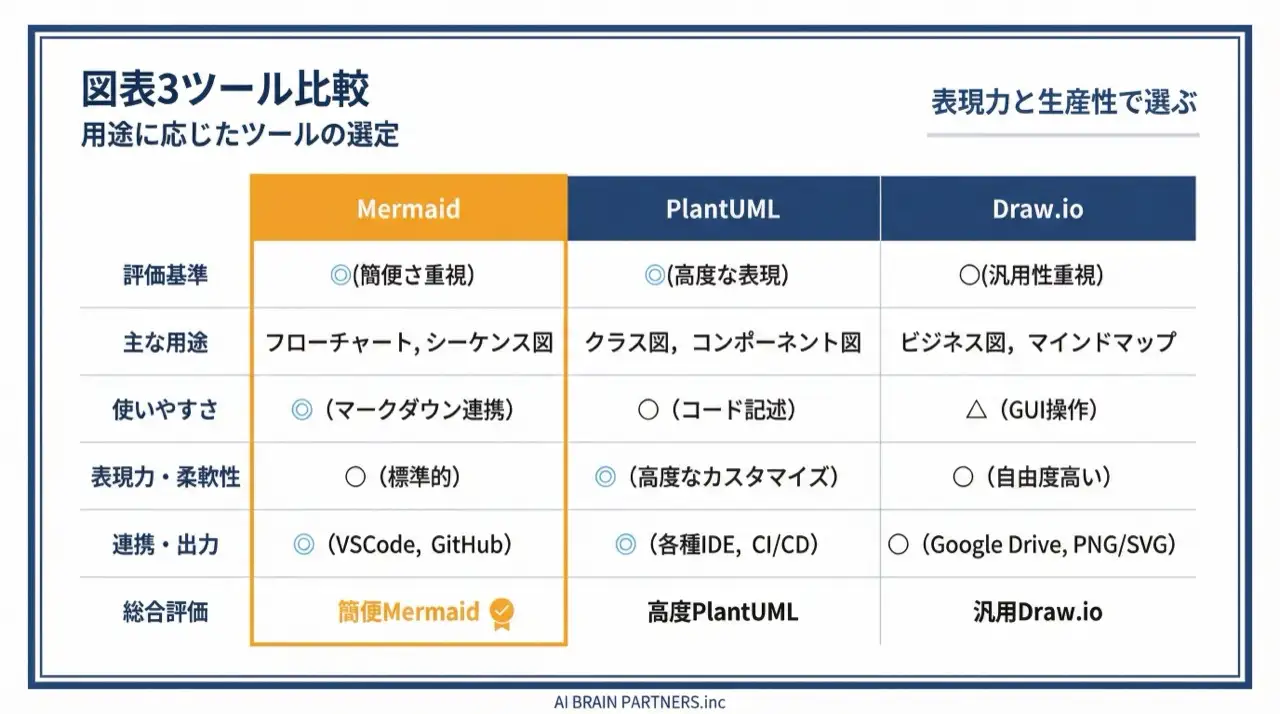
| Tool | Characteristics | Best for |
|---|---|---|
| Mermaid | Text-based syntax; lightweight with CDN support for instant browser preview | Flowcharts, sequence diagrams, Gantt charts |
| PlantUML | UML syntax; image output can be fully automated with a script | UML sequence, class, and activity diagrams |
| Draw.io-compatible SVG | Produces SVGs editable in Draw.io (diagrams.net); supports team collaboration | System architecture and network diagrams |
A simple selection rule:
- Need to see it immediately or embed it in docs → Mermaid (instant browser preview)
- Need precise actor-to-actor interactions → PlantUML (sequence diagrams are its specialty)
- Need the team to edit it freely later → Draw.io-compatible SVG
With these three, you can handle everything from a simple flow to a complex system architecture diagram.
How to generate a business flowchart
The basic flow when asking an AI agent (Claude Code, Cursor, etc.):
- Pick a theme — e.g., "new employee onboarding process"
- List the steps as bullets — document submission → PC and account setup → training → on-the-job training → follow-up interviews
- Specify branch conditions — e.g., "branch on pass/fail of the training test"
- Specify the output format — "as a Mermaid code block," "as a Draw.io-compatible SVG," etc.
- Review the result and describe corrections in words
The key is to write out the steps and branches before you ask. Describe the theme concretely and in detail, and make relationships explicit with bullets and arrows — accuracy improves significantly. Prompts written in English also tend to produce more accurate results than other languages.
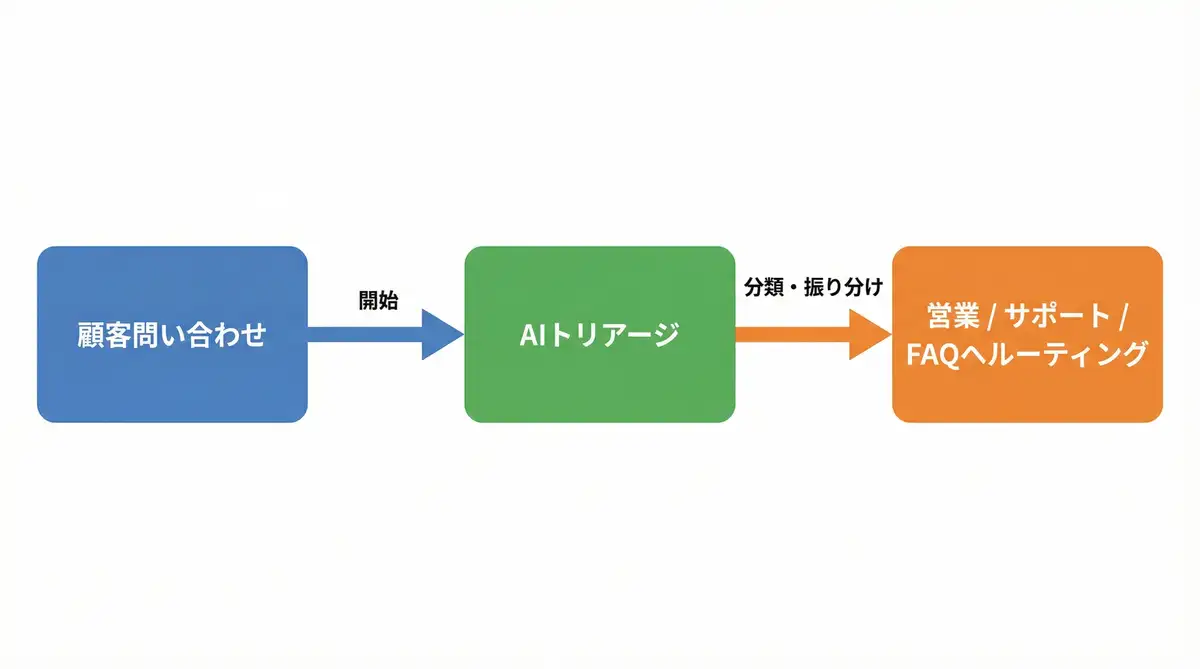
The same approach scales to a four-party sequence diagram ("browser → API server → DB → external API"), a system architecture diagram for a "Next.js + Supabase + Stripe" stack, or a color-coded marketing department workflow as a Draw.io-compatible SVG. You can even have the AI read sales data from an Excel file and build a monthly revenue infographic interactively.
Three ways to render PlantUML as an image
PlantUML is generated as code, so it needs rendering to become a picture. There are three options:
- Let the generation skill render it (recommended) — ask the AI to "create the diagram in PlantUML and output the image too"; code generation, PNG/SVG conversion, and saving happen in one pass
- The official PlantUML online editor — open plantuml.com in a browser and paste the code; no installation required
- VSCode / Cursor extension — install the "PlantUML" extension (jebbs.plantuml) for real-time preview inside the editor (Option+D on Mac, Alt+D on Windows/Linux)
For Draw.io-compatible SVGs, just drag and drop the generated file into app.diagrams.net to re-edit it, or paste it directly into slides and documents.
Screenshots × AI: auto-generating work manuals
Now for the second pillar. Modern AI can understand images, which means you can hand it screenshots or videos and get an operations manual or tutorial back. Think of it as "giving AI eyes."
The course covers four representative skills:
| Skill | What it does |
|---|---|
| screenshot-analyzer | Analyzes error screens and UI screenshots; produces cause analysis and suggested fixes as a report |
| screenshot-annotator | Automatically adds red boxes, arrows, numbered callouts, and highlights to create manual-ready images |
| tutorial-generator | Auto-generates a step-by-step Markdown tutorial from multiple screenshots |
| video-frame-reader | Extracts keyframes from a screen recording (.mp4) and generates a documented walkthrough |
One screenshot conveys a situation more accurately than 1,000 words of explanation. Now that AI can read them, screen captures are the ultimate communication tool.
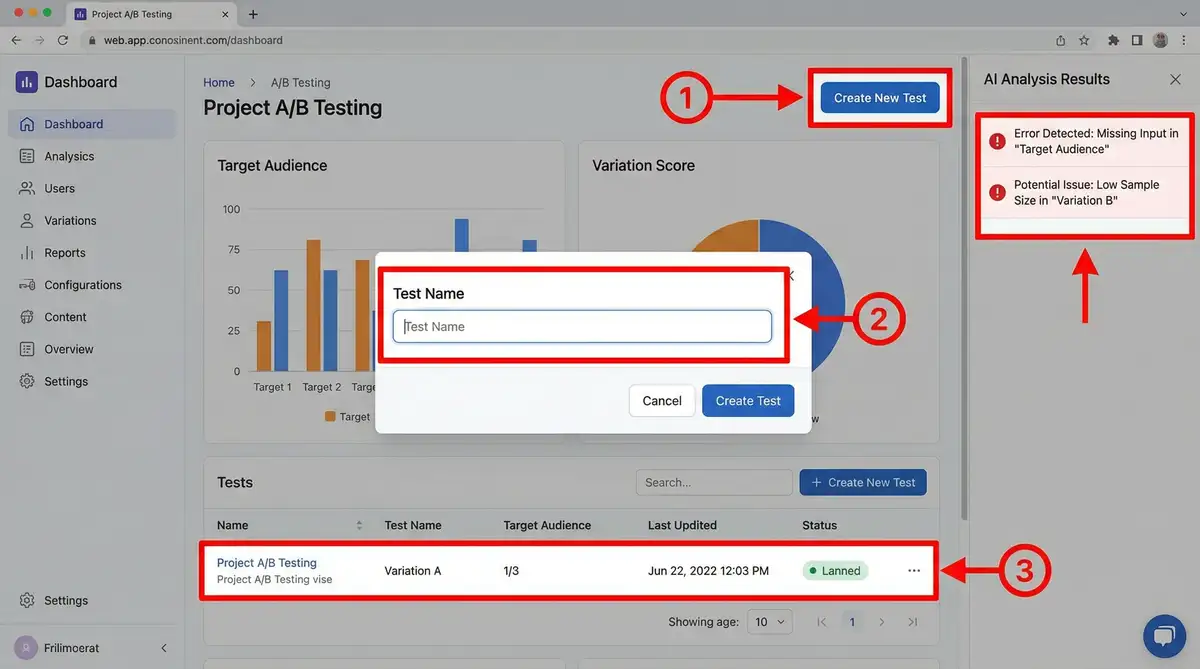
The manual-generation workflow
- Capture screenshots of the operation and save them to a folder — number the filenames (
01_,02_, ...) in capture order - Ask the AI to generate a tutorial — "from the images in this folder, auto-generate a step-by-step manual in Markdown"
- The AI determines the image order and recognizes UI elements to write the step descriptions
- Have it annotate images where needed — instructions like "1. click here, 2. enter the value, 3. press save" become placed callouts
- Review and finish the generated document
High-resolution screenshots (1920x1080 or above is recommended) improve analysis accuracy. For complex workflows, combine with a screen recording and extract keyframes for documentation.
It works for error handling too
The same mechanism powers error-screen diagnosis. Hand the AI a screenshot of an error, and it recognizes the message, classifies the error type (HTTP/JS/UI and so on), infers the likely cause from context, and proposes a step-by-step fix. No more describing the situation in words — sharing with the team and resolving incidents both get dramatically faster.
In environments with a browser-automation capability (Browser MCP), the AI can even open a web page itself, capture the screenshot, and analyze UI improvements.
Practical patterns combining diagrams and manuals
The pieces compound when combined:
- New system rollout: business flow diagram (Mermaid) + auto-generated operation manual from screenshots
- Standardizing support workflows: a PlantUML sequence diagram of the escalation flow + annotated per-screen manuals
- Proposals: generate a system architecture diagram (Draw.io SVG) and embed it in an AI-generated presentation
If a result is unsatisfying, revise the prompt and re-run; pick the best of several generations and iterate. For images beyond diagrams — banners and header visuals — see the AI banner and image generation guide.
For hands-on team training, see our corporate AI agent training.
Frequently asked questions
Q. How do I choose between Mermaid, PlantUML, and Draw.io? A. Use Mermaid when you want instant browser preview or easy embedding in documents, PlantUML for precise sequence and UML diagrams between actors, and Draw.io-compatible SVG when the team needs to drag-and-drop edit the result later. Mermaid is lightweight with CDN support, PlantUML excels at script-automated image output, and Draw.io SVGs can be re-edited by anyone at app.diagrams.net.
Q. Can I really make diagrams without drawing skills? A. Yes. What is required is not drawing skill but the ability to write out the steps, branch conditions, and actors in words. Turn the process into a bulleted list, say "make this a flowchart," and the AI converts it into diagram syntax and renders it. Revisions are also verbal: "add this branch."
Q. Any tips to improve generation accuracy? A. Describe the theme concretely and in detail, and use bullets and arrows to make relationships between elements explicit. English prompts also tend to generate more accurately. Do not aim for perfection in one shot — generate several candidates, pick the best, and iterate.
Q. What do I need to auto-generate an operations manual? A. A folder of screenshots saved in capture order with numbered filenames (01_, 02_, ...) is enough to start. A resolution of 1920x1080 or higher is recommended. The AI infers the order and UI elements to write the steps, and can add red boxes, arrows, and numbered callouts where needed. You can also start from a screen recording (.mp4) and extract keyframes automatically.
Q. How far does error-screen analysis go? A. Given an error screenshot, the AI recognizes the message, classifies the error type (HTTP/JS/UI and so on), infers causes from context, and outputs a report with step-by-step resolution suggestions — including which logs to check if you ask. Final remediation decisions should still be reviewed by a human before execution.
Related articles
- AI Banner & Image Generation for Business
- Creating, Analyzing, and Converting PowerPoint Decks with AI
- The AI Article Writing Workflow
- The Complete Guide to AI Agents for Business
- Corporate AI agent training (hands-on)
Related services
Ready to put AI agents to work?
Turn what you just read into real workflows. AI Agent Camp helps non-technical professionals go from using to building — hands-on.
Last reviewed: 2026-06-10