
"I spend hours every week building proposal decks" or "we have a corporate template, but swapping the content in by hand never ends" — PowerPoint is one of the biggest time sinks in office work.
This guide explains how to automate presentation production using three specialized tools that cover analyzing, converting, and generating PPTX files. The content is based on the training materials we use in our corporate workshops and online course.
What you will learn in this article
- What AI PPTX generation is and why it speeds up deck production
- The three PPTX tools — analyzer, converter, creator — and their roles
- How to replace content while preserving a template's design and animations
- How to generate a full deck from scratch by specifying only a topic
- The analyze → convert → generate three-tool pipeline
- Environment requirements and caveats
What is AI PPTX generation?
AI PPTX generation is a technology where AI automatically creates PowerPoint slides from text content — structure, layout, and design included.
You can auto-generate meeting materials, proposals, training decks, and reports with both structure and design, and you can also convert content to match an existing template. The most time-consuming part of slide creation is visual adjustment. Hand that to AI, and you can focus solely on what you want to convey.
The three tools in 30 seconds
The course covers PPTX "analysis," "conversion," and "generation" with three specialized tools.
| What you want to do | Tool to use |
|---|---|
| Inspect the contents and structure of an existing PPTX | pptx-analyzer |
| Replace content while keeping the template design | pptx-converter |
| Auto-generate a presentation from scratch | pptx-creator |
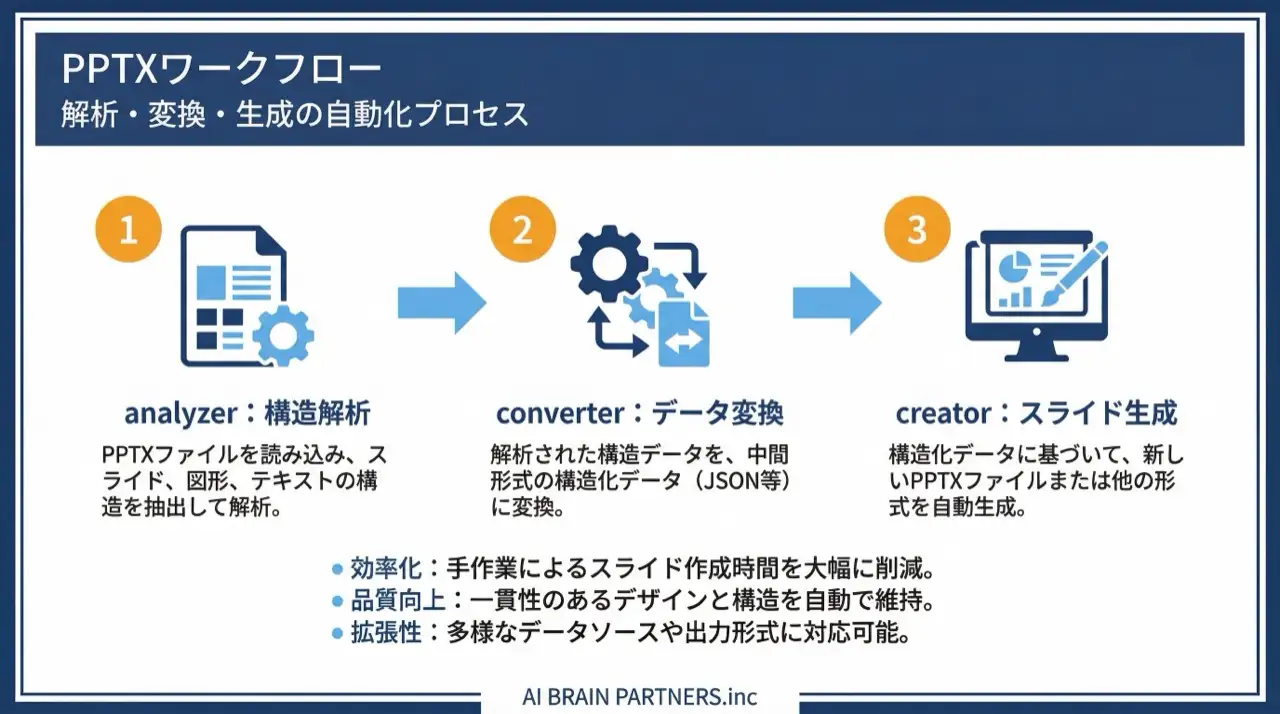
pptx-analyzer — understand an existing deck's structure
pptx-analyzer parses a PPTX file and outputs slides, shapes, placeholders, and text in JSON/text form. It is the ideal pre-processing step before template work.
Its three main capabilities:
- Structure extraction — lists slides, shapes, placeholders, and text
- Image rendering — an option to convert slides to PNG images
- Semantic analysis — an option that uses Gemini to automatically classify each slide's role and each element's purpose
Knowing "what lives where" in a machine-readable form — down to shape IDs, coordinates, sizes, text content, and font information — makes the conversion and generation steps that follow far more accurate.
pptx-converter — swap content while preserving the design
pptx-converter rewrites the content of an existing PPTX template using Gemini's semantic analysis while preserving the theme, animations, and SmartArt. It addresses the single most common real-world need: "keep our corporate design, replace only the substance."
It has four subcommands:
| Command | Purpose | Description |
|---|---|---|
| convert | Template conversion | One command semantically analyzes all elements and rewrites them for a new topic |
| extract | Mapping generation | Extracts and analyzes all elements into a YAML for manual review and editing |
| build | Apply YAML | Rewrites elements using a hand-edited data YAML |
| deck | Generate from scratch | Generates an outline from a topic and builds a PPTX |
Preserved through conversion: slide masters, theme colors, font definitions, animations, transitions, SmartArt structure, layout placement, and text styles (font, color, bold, etc.).
Element-type support:
| Type | Rewrite | Notes |
|---|---|---|
| Text | Yes | Styles fully preserved |
| Charts | Yes | Data-only replacement |
| Tables | Yes | Cell styles preserved |
| Images | Yes | Individually replaceable |
| SmartArt | Partial | Text nodes only |
A request as simple as "keep this sales template's design and animations and rewrite the content for an 'AI adoption proposal'" completes in one conversion. For fine-grained control, use the extract → edit the YAML → build flow instead.
pptx-creator — generate a deck from scratch
pptx-creator builds a presentation automatically from just a topic: Gemini generates the outline, and you get an editable PPTX that follows a template.
Eleven slide types are available — title, section divider, content, key message, two-column, comparison, agenda, closing, KPI/numbers, flow, and table — and the AI selects the right ones automatically.
Two template families ship with it: a simple design using the Arial font, and a standard professional design using Noto Sans JP. Key options include the topic, template name, slide count, target audience, and output language (ja/en), plus a dry-run mode that generates only the outline first.
A typical request:
- Decide the topic — e.g., "an introduction deck for an AI agent training program"
- Add the conditions — "generate 10 slides; the audience is corporate training managers"
- Open the generated PPTX, review, and fine-tune
Rich elements such as KPI dashboards and process flows are included automatically, so a realistic division of labor emerges: AI builds the skeleton and visuals; humans finalize the substance.
The three-tool pipeline — analyze → convert → generate
The tools deliver the most value chained as a pipeline:
- Step 1 — Analyze (analyzer): parse the existing PPTX to map layouts and placeholders
- Step 2 — Convert (converter): rewrite the template's content for the new theme based on the analysis
- Step 3 — Generate (creator): create additional slides (FAQ, summary, next steps) and merge everything into the final deck
Running the analyzer first makes conversion and generation smoother. Combine with AI diagram generation for flow and architecture visuals, and with AI banner and image generation for covers and key visuals — and you can produce the entire deck package in-house with AI.
Environment requirements and caveats
You will need:
- The python-pptx, pyyaml, lxml, and Pillow libraries
- A Gemini API key (required for converter and creator)
- The skill files installed
- An additional conversion environment if you use slide-to-image rendering
Caveats worth knowing:
- Large PPTX files (50MB+) can take a long time to process
- Macro-enabled PPTM files have limited support
- SmartArt rewriting covers text nodes only (shape structure cannot be changed)
For how to phrase effective requests to an AI agent, see The Complete Guide to AI Agents for Business. For hands-on team training, see our corporate AI agent training.
Frequently asked questions
Q. Will my corporate template's design break? A. pptx-converter is designed to preserve slide masters, theme colors, font definitions, animations, transitions, SmartArt structure, and layout placement while rewriting only text and chart data. Text keeps its full styling (font, color, bold), charts get data-only replacement, and tables preserve cell styles. Your design assets stay intact while the substance is updated.
Q. When generating from scratch, does the AI plan the structure too? A. Yes. Give pptx-creator a topic and target audience, and Gemini generates the outline and automatically selects from eleven slide types — title, agenda, content, comparison, KPI, flow, closing, and more — to build the PPTX. A dry-run mode generates only the outline first, so you can agree on the structure before committing to full generation.
Q. Which tool should I start with? A. It depends on the goal: pptx-analyzer to inspect an existing deck's contents and structure, pptx-converter to refresh content inside a branded template, and pptx-creator to build from scratch. In practice, running the analyzer first to understand the template improves the accuracy of conversion and generation. The most effective pattern is chaining all three as an analyze → convert → generate pipeline.
Q. Can I use the generated deck directly in a meeting? A. The output is an editable PPTX you can open and fine-tune in PowerPoint. However, always have a human review AI-generated content before use — especially the accuracy of numbers, names, and claims. "AI for skeleton and looks, human for final substance check" is the safe division of labor.
Q. Is any special environment required? A. You need Python libraries such as python-pptx, and a Gemini API key for the converter and creator. Also note that files over 50MB take longer to process, macro-enabled PPTM files have limited support, and SmartArt rewriting is restricted to text nodes.
Related articles
- Generating Diagrams, Flowcharts, and Manuals with AI
- AI Banner & Image Generation for Business
- The AI Article Writing Workflow
- The Complete Guide to AI Agents for Business
- Corporate AI agent training (hands-on)
Related services
Ready to put AI agents to work?
Turn what you just read into real workflows. AI Agent Camp helps non-technical professionals go from using to building — hands-on.
Last reviewed: 2026-06-10