
Scheduling back-and-forth, an inbox full of emails you meant to reply to, files scattered across Drive — for many professionals, half the workday disappears into Google Workspace housekeeping.
This guide explains the AI secretary: a setup where an AI agent operates Google Calendar, Gmail, Drive, and Sheets as one integrated assistant. We cover what it can do, how the architecture works, how to get started, and the guardrails you need. The content is based on the training materials (Module 4 and Module 16) we use in our corporate training and online course.
If you want the fundamentals of AI agents first, start with The Complete Guide to AI Agents for Business.
What you will learn
- What an AI secretary is (in one sentence)
- What it can do — Calendar, Gmail, Drive, and Sheets
- How it works — CLI tools (gogcli) plus agent skills
- Getting started — the Google authentication flow (overview)
- Example 1: "Schedule a 1-on-1 in next week's free slot"
- Example 2: the morning briefing — unreplied-email triage and reply drafts
- Advanced: drafting emails in your own writing style
- How to operate it safely
What is an AI secretary?
An AI secretary is a setup where an AI agent integrates and operates Google Workspace (Calendar, Gmail, Drive, Sheets) to support your daily work like a personal assistant.
Schedule coordination, morning email briefings, file organization, data aggregation, routine task automation — you delegate all of this through natural-language instructions.
The core value proposition is simple: an AI secretary never forgets, never gets tired, and works 24/7. Instead of hiring an assistant, you connect the Google services you already use and let an AI agent operate them as one.
What an AI secretary can do
| Area | Capability | Example task |
|---|---|---|
| Calendar | Fetch events, search free slots, create events | "Schedule a 1-on-1 in next week's free slot" |
| Gmail | Detect unreplied emails, triage priority, generate reply drafts | A morning briefing that ends missed replies |
| Drive | List files, upload/download, format export | "Find last month's meeting minutes and summarize them" |
| Sheets | Retrieve data, aggregate, export CSV/Excel | Survey results aggregated by department |
| Scheduled runs (GAS) | Run all of the above on a daily trigger | A fully automated morning routine |
The key point: these are not isolated conveniences — they work together. For example, one automation can check today's events, detect unreplied emails, log the results to Sheets, and email you a summary, every morning.
How it works — CLI tools plus agent skills
An AI secretary is not a product you buy. It is a combination of three parts:
- An AI agent — a coding agent such as Claude Code or Cursor. It interprets natural-language instructions, plans, and executes commands
- A CLI tool (gogcli) — a command-line tool that calls Google APIs. After authentication (
gog auth add), it operates Gmail, Calendar, Drive, and Sheets viagogcommands - A skill (google-workspace-ops) — a definition file that teaches the agent the correct procedures for Google Workspace operations across Calendar, Gmail, Drive, and Sheets
You simply say "schedule a 1-on-1 in next week's free slot," and the agent runs free-slot search → event creation behind the scenes.
Getting started — Google authentication (overview)
For the AI secretary to access your Google data safely, you complete a one-time OAuth setup. The broad strokes:
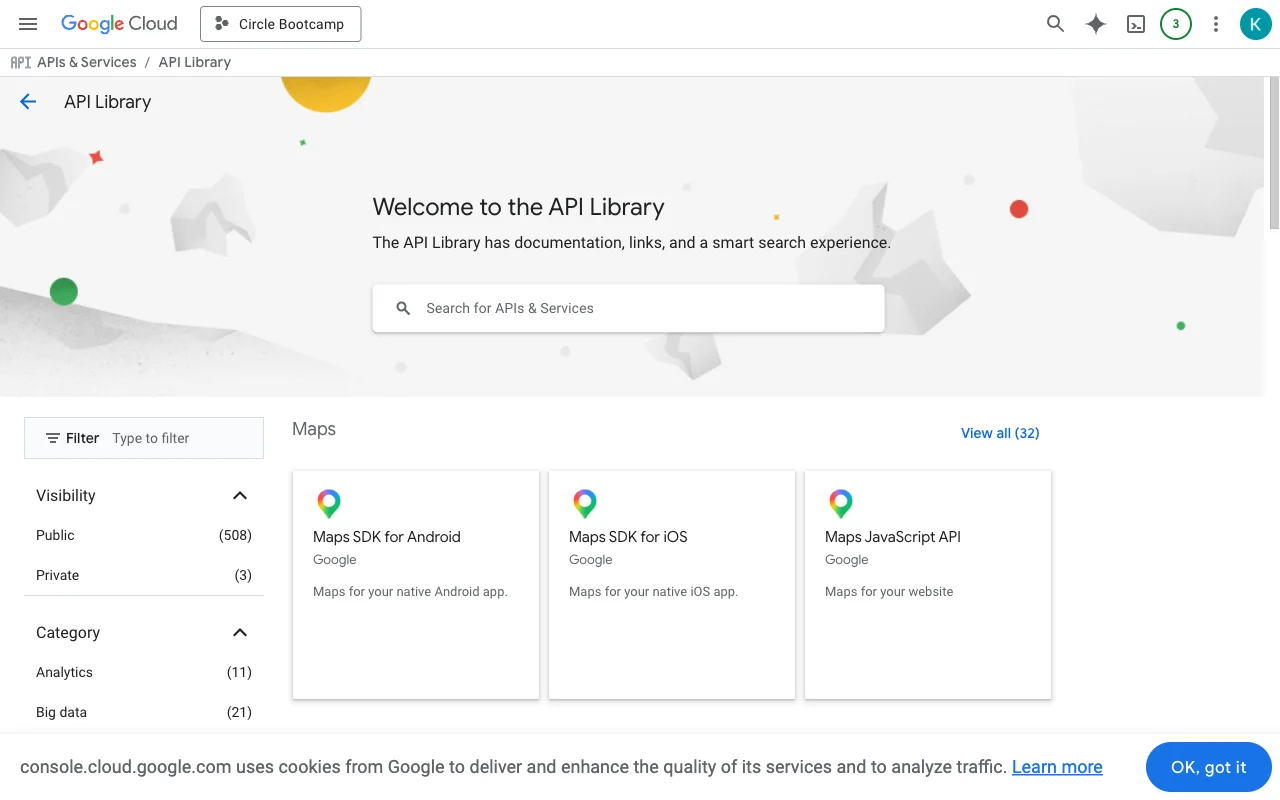
- Create a Google Cloud project and enable the APIs you need (Calendar, Gmail, Drive, Sheets)
- Create an OAuth client (Desktop app) and download its JSON credentials. Adding your own Google account as a test user lets you proceed without app verification
- Register the JSON with
gog auth credentials set, then rungog auth addand complete the browser consent screen
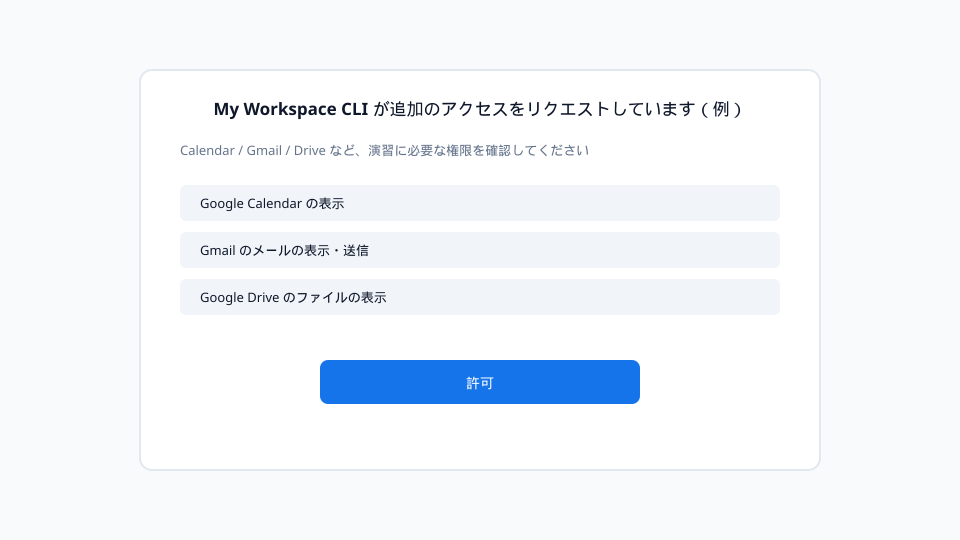
Authentication runs once; the token is stored locally and reused automatically, including when commands run through the agent. Console layouts change with Google updates and this is the step where most people stumble — in our course, the agent itself guides you through verification and setup.
One rule to internalize from day one: the downloaded OAuth client JSON is a secret. Never commit it to Git; keep it local only.
Example 1: Scheduling — "Schedule a 1-on-1 in next week's free slot"
Calendar operations are the most intuitive entry point. The flow has three steps:
- Fetch events — list your events for the next 7 days
- Search free slots — find open time in a given window
- Create the event — book a slot that matches the conditions
Your part is a single natural-language sentence. The agent chains free-slot search and event creation automatically.
One caution: calendar event creation is hard to undo. Start with a test account, verify the behavior, then point it at your real work calendar.
Example 2: The morning briefing — triage and reply drafts
Where the AI secretary pays off most in email is unreplied-email detection plus automatic reply drafts:
- The agent detects unreplied emails in your inbox
- AI analyzes the content and triages priority
- For high-priority emails, it generates reply drafts
The triage criteria are deliberately simple:
| Priority | Criteria |
|---|---|
| High | Needs a reply within 24 hours |
| Medium | Should be handled this week |
| Low | Informational only, no reply needed |
The analysis uses a check-inbox skill, with the Gemini API judging context to assign priority and draft replies. For sending, the standard practice is to preview with the --dry-run option before anything actually goes out.
Always review AI-generated drafts before sending. Checking for sensitive information or inappropriate phrasing stays a human responsibility.
Advanced: drafting in your own writing style
A technique that lifts draft quality significantly is templating your own writing style:
- Retrieve 10–20 of your sent emails and have the AI analyze the style
- Turn greeting patterns, formality level, common phrases, and closings into a Markdown template
- Save the template as a skill or rules file (CLAUDE.md / AGENTS.md / Cursor Rules) so the agent references it automatically when composing email
Build it once, reuse it forever — and consider separate templates for different recipients or contexts.
Putting it together: automating the whole morning routine
Once you are comfortable with individual operations, combine them with Google Apps Script (GAS) triggers for daily scheduled execution:
- Fetch today's calendar events
- Detect unreplied emails and assess priority
- Log results to Sheets
- Email a summary to yourself
At this point, your AI secretary prepares a briefing before you even sit down. For building scheduled GAS automations, see Automate Your Work with Google Apps Script and AI.
Operating safely
- Preview before sending or creating — email sends and event creation are hard to undo; use
--dry-runand test environments first - Never commit OAuth credentials to Git — keep JSON files and tokens local
- Check sharing permissions before accessing other users' Calendars or Drive files
- Humans approve final sends — especially for external email
For team-wide adoption with hands-on guidance, see our corporate AI agent training.
Frequently asked questions
Q. Do I need programming skills to use an AI secretary? A. Mostly no. You instruct the agent in natural language ("schedule a 1-on-1 in next week's free slot") and the agent executes the commands. What matters more than coding is the ability to describe your work procedures clearly. The one technical step is the initial Google OAuth setup, and the agent can guide you through it.
Q. Is it safe to let AI handle my Gmail replies? A. The standard division of labor is "AI drafts, humans approve sends." The AI detects unreplied emails, triages priority, and writes drafts; a human reviews every message before it goes out. The send command also supports a dry-run preview, so nothing is sent without confirmation.
Q. What about security risks? A. Authentication uses Google's standard OAuth flow and tokens are stored locally. The risks to manage are operational: never commit OAuth client JSON or credentials to Git, start with a test account, and verify sharing permissions before touching other people's Calendar or Drive data.
Q. Which task should I automate first? A. Start with read-only operations — fetching calendar events or searching free slots. Once you trust the behavior, move to the unreplied-email briefing, and only then to write operations like event creation and email sending, which are hard to undo and deserve a test-environment check first.
Q. Does this approach work beyond Google Workspace? A. Yes — the pattern is general. Any service operable via CLI or API can be automated with the same agent + tool + skill structure. Notion is a good example: the same pattern automates database operations and page generation (see related articles).
Related articles
- The Complete Guide to AI Agents for Business
- Automate Your Work with Google Apps Script and AI
- AI Data Analysis: EDA and Dashboards with AI Agents
- Notion x AI: Automating Databases and Page Generation
- AI Agent Governance for Business
- Corporate AI agent training (hands-on)
Related services
Ready to put AI agents to work?
Turn what you just read into real workflows. AI Agent Camp helps non-technical professionals go from using to building — hands-on.
Last reviewed: 2026-06-10