
Checking the same emails every morning, copying data into the same spreadsheet, sending the same digest — if your team runs on Google Workspace, you know these loops. They are exactly what Google Apps Script (GAS) combined with AI agents can turn into automation that runs by itself.
This guide covers what GAS is, how to let an AI agent do the GAS development for you, and ready-to-use automation recipes: news digests, invoice email processing, a morning routine, Slack notifications, and automatic Google Slides generation. The content is based on the training materials (Module 10) we use in our corporate training and online course.
For the fundamentals of AI agents themselves, see The Complete Guide to AI Agents for Business.
What you will learn
- What Google Apps Script (GAS) is
- Why "GAS x AI agent" is the winning combination
- What clasp is — local development and why AI loves it
- Recipe 1: auto-fetch news and email yourself a digest
- Recipe 2: detect invoice emails → organize PDFs → draft a forward
- Recipe 3: morning routine automation and Slack notifications
- Advanced: auto-generating Google Slides with GAS (JSON-driven)
- GAS limits and operational cautions
What is Google Apps Script (GAS)?
Google Apps Script (GAS) is a programming environment that automates Google services — Spreadsheets, Gmail, Calendar, and more. It is free for anyone with a Google account.
Typical things GAS can do:
- Auto-send and auto-sort email
- Scheduled spreadsheet aggregation
- Automatic calendar event registration
- Automatic form-response processing
- Scheduled execution via time-based triggers
The headline feature is the trigger: schedule a script to run "every morning at 7 AM" and it executes with nobody at the keyboard. That is also the key to dividing labor with AI agents — interactive work goes to the agent, unattended scheduled work goes to GAS. Combining the two is the theme of this article.
Why "GAS x AI agent"?
Historically, the obstacle to GAS was simple: nobody on the team could write the code. AI agents (Claude Code, Cursor, and others) remove that obstacle.
- AI writes the code — ask in plain language, "create a GAS script that detects invoice emails and logs them to a ledger," and the agent generates the script
- AI deploys it too — using the clasp CLI (below), the agent pushes and deploys the code
- Humans own requirements and review — your job is to articulate what should be automated and to verify the results
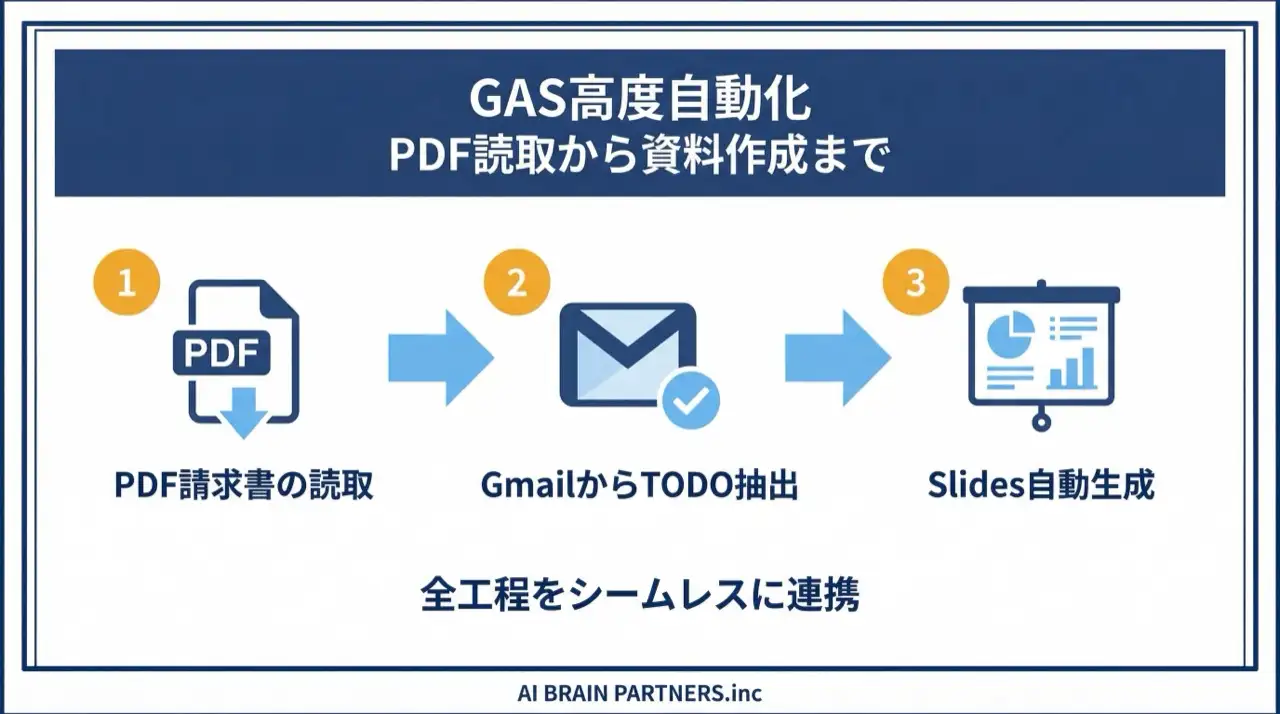
Automating repetitive work pays off beyond saved hours: it stabilizes quality and repeatability, freeing capacity to deliver new value.
What is clasp — local development and why AI loves it
clasp is Google's command-line tool for GAS. You edit .gs source files locally, run clasp push to update the cloud Apps Script project, and clasp pull to bring cloud changes back (two-way sync).
Why develop locally instead of in the browser editor? Four reasons:
- Git workflows — history and reviews
- Editor tooling and easier team review
- Bulk editing by AI agents (the decisive one)
- push / deploy / run all become scriptable commands
The basic flow: clasp login to authenticate → clasp create a project → clasp push → clasp deploy. Note that the first time a script accesses Gmail or Sheets, Google shows a permission (consent) screen. It cannot be skipped — review it and approve to proceed.
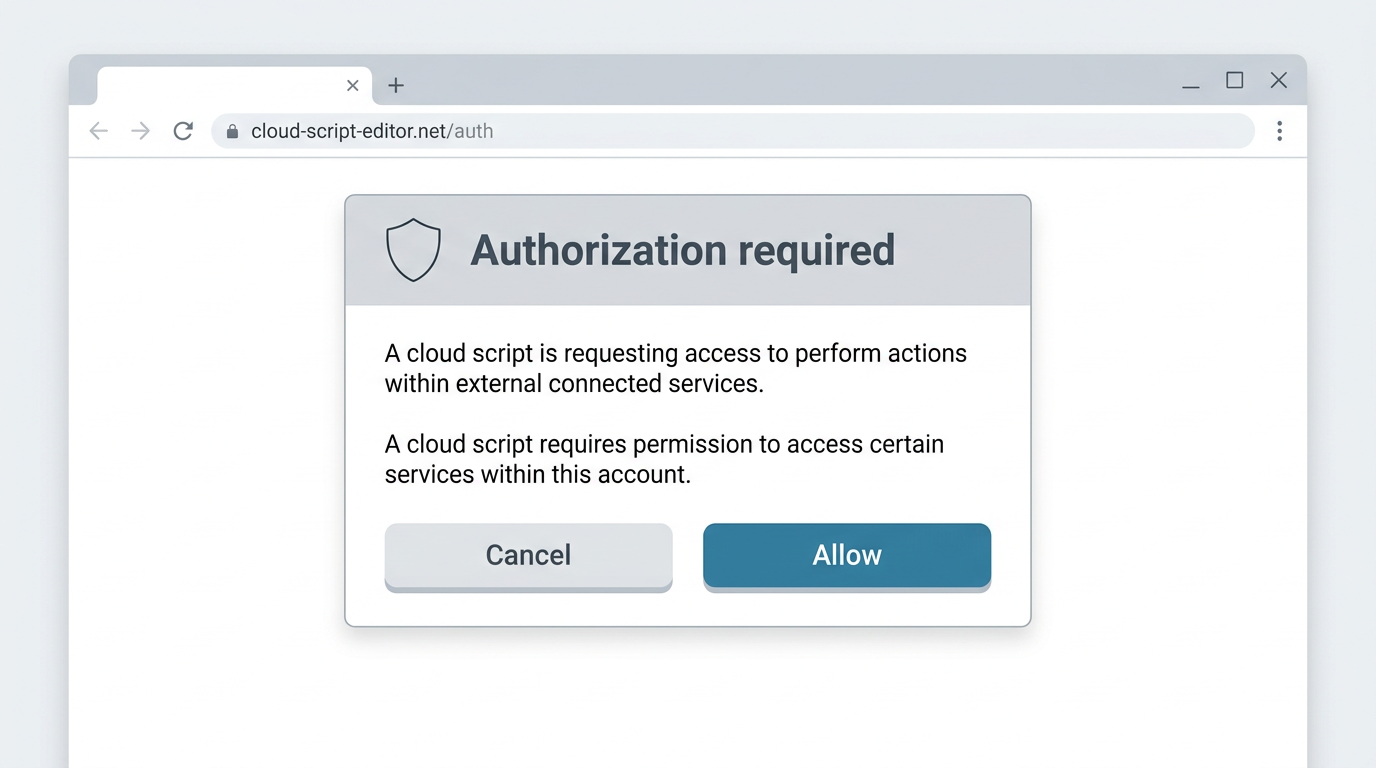
One important caution: the authorization code shown during clasp login should be treated like a secret. Never paste it into chat; enter it only in the terminal as instructed.
Recipe 1: auto-fetch news and email yourself a digest
The first recipe delivers a news digest to your inbox every morning. Only three building blocks:
- UrlFetchApp fetches the latest articles from a news RSS feed
- Titles, links, and summaries are formatted with an HTML email template
- ScriptApp.newTrigger sets a daily 8 AM execution trigger
Write the requirements in your request to the agent — "fetch the latest 5 articles from the RSS feed, format them as an HTML table, send to me with GmailApp.sendEmail, and set a daily 8 AM trigger" — and it handles script creation through deployment.
Recipe 2: detect invoice emails → organize PDFs → draft a forward
A high-impact recipe for finance workflows is automatic invoice email processing:
- GmailApp.search finds invoice emails from the last 30 days
- PDF attachments are retrieved and sender, subject, date, and filename are compiled into a list
- SpreadsheetApp records everything in a management ledger
- GmailApp.createDraft creates a forwarding draft for the accounting team (PDFs attached)
The design detail that matters: the flow ends with a draft, not an automatic send. Keeping the final send decision with a human eliminates mis-send risk while still removing all the manual work.
Recipe 3: morning routine automation and Slack notifications
The capstone recipe spans multiple Google services — a "morning routine" combined into one function and run by a daily 7 AM trigger:
- CalendarApp fetches today's events
- GmailApp retrieves unread emails and assesses priority by subject
- SpreadsheetApp appends date, event count, unread count, and action-required count to a sheet
- Everything is compiled into HTML and sent to you via GmailApp.sendEmail
You can also route the results to a Slack channel instead of email: set up a Slack Incoming Webhook and POST a JSON payload with UrlFetchApp.fetch. One operational rule comes with it:
The Webhook URL is sensitive information. Never hardcode it — manage it with GAS script properties (PropertiesService).
For the interactive counterpart of this routine — running it on demand through an agent — see AI Secretary: Automate Gmail, Calendar & Drive.
Advanced: auto-generating Google Slides (JSON-driven)
A popular advanced application of GAS is automatic Google Slides generation, using a two-stage JSON-driven approach (also known as the "Majin style"):
- Step 1 — generate slideData JSON: an LLM (Gemini / Claude) outputs the presentation structure (titles, body, layout) as JSON
- Step 2 — apply to Slides via GAS: a GAS script reads the JSON and mechanically renders it through the SlidesApp API — creating the deck, adding pages, placing text
- Step 3 — deploy and verify: deploy with clasp push and check the finished deck on Google Drive
slideData is an array where each element is one slide; a type field (title / section / content / process / closing) selects the layout.
The essence of the approach: instead of asking AI to "make slides" directly, you insert structured data (JSON) in the middle, which makes output reproducible and templates reusable. To automate the analysis that feeds the deck, connect this with AI Data Analysis: EDA and Dashboards.
GAS limits and operational cautions
Constraints to know, from the course materials:
| Item | Detail |
|---|---|
| Execution time limit | 6 minutes per run (free account) |
| Trigger limits | Daily limits on trigger executions |
| External access | Use UrlFetchApp for external services |
| Runtime | Latest clasp requires Node.js 22+ |
| API setup | Apps Script API must be enabled in Google Cloud Console |
Three operational tips:
- Use Logger.log() and the Execution Log for debugging
- Check file diffs with
clasp statusbeforeclasp push - Manage triggers in code with ScriptApp.newTrigger() rather than manually
Also note: on organizational (Google Workspace) accounts, admin security settings or restrictions on unverified apps may block sign-in — check your IT policy first. For team-wide rollout, see our corporate AI agent training.
Frequently asked questions
Q. Is GAS free to use? A. Yes, free with a Google account. Free accounts have a 6-minute limit per execution and daily limits on trigger runs, but for typical routine business automation these limits are rarely a problem.
Q. Can I automate with GAS without programming experience? A. Yes, when paired with an AI agent. The agent writes, fixes, and deploys the scripts; your job is to state concrete requirements ("what should be automated, under what conditions") and verify the results. Standard prompt-writing patterns apply directly.
Q. When should I use GAS versus an AI agent? A. Use GAS triggers for unattended, scheduled processing, and AI agents for interactive work. The standard pattern: shape the automation in conversation with an agent, then move the stabilized process onto a GAS trigger to run unattended.
Q. Isn't automatic email sending risky? A. Design where the automation stops based on risk. The invoice recipe deliberately ends with a draft rather than an automatic send, leaving the send decision to a human. Reserve fully automatic sending for low-risk cases like summaries to yourself.
Q. How should I manage Webhook URLs and API keys? A. Never hardcode them. Store them in GAS script properties via PropertiesService.getScriptProperties(). Likewise, treat the clasp login authorization code like a secret: enter it only in the terminal, never in chat.
Related articles
- The Complete Guide to AI Agents for Business
- AI Secretary: Automate Gmail, Google Calendar & Drive
- AI Data Analysis: EDA and Dashboards with AI Agents
- Notion x AI: Automating Databases and Page Generation
- Corporate AI agent training (hands-on)
Related services
Ready to put AI agents to work?
Turn what you just read into real workflows. AI Agent Camp helps non-technical professionals go from using to building — hands-on.
Last reviewed: 2026-06-10